 COME
COME
Check the account and amount first
Open COME using the account that holds the balance you want to withdraw. Find the withdrawal option in the account or wallet area, then review the amount available for withdrawal. A total wallet balance and a withdrawable amount may be presented differently; use the explanation shown by the app.
Check any minimum amount, limit or eligibility message on that screen. Conditions can depend on the account and the applicable terms, so do not substitute a number from an old screenshot or another website.
If a condition is unclear or the app will not let you continue, ask Customer Center what it means before submitting. You do not need to place additional bets to follow this help guide.
Review the destination details
Check the saved receiving details carefully before confirming a request. Where a bank account is used, review the account holder, masked account number and other details that the app displays. Do not assume that a previously saved destination is still correct.
If a bank detail needs changing, the app’s Customer Center includes bank-account help and a change-request tool. Use that route to ask how the correction should be handled. Do not submit a withdrawal to incorrect details simply to test whether it arrives.
Complete any verification only inside the account flow you opened yourself. Never share an OTP, password or banking PIN in a public message.
Submit once and keep the order record
- Review the amount, destination and any fee or condition displayed before confirmation.
- Submit the request when those details are correct.
- Look for a confirmation or the resulting record in the app’s transaction history.
- Save the order number, amount, request time and initial status privately.
- If the screen closes or times out, check the history before creating another request.
A missing confirmation screen does not prove that nothing was submitted. If a record exists, use that record to track the request. If no record appears and the balance looks different, contact support with the time and amount instead of repeatedly submitting.
Follow the status that actually appears
| What you see | Next step |
|---|---|
| Pending or processing | Keep the order details and follow the processing guide |
| Failed or rejected | Read the reason and check the account record before retrying |
| Successful, but no bank credit | Compare the receiving account statement and ask for a transaction trace |
| No withdrawal order | Ask support to check whether the request was created |
Choose the guide matching your current screen: pending, failed or successful but not received. No status label alone provides a guaranteed arrival time.
Use the matching Customer Center tool
Open the account menu, choose Contact CS and enter Customer Center. Check My Tickets or Withdrawal Issues. Select the relevant order if it is available; if the tool does not list it, use Live Chat and provide the order number, amount, time and current status.
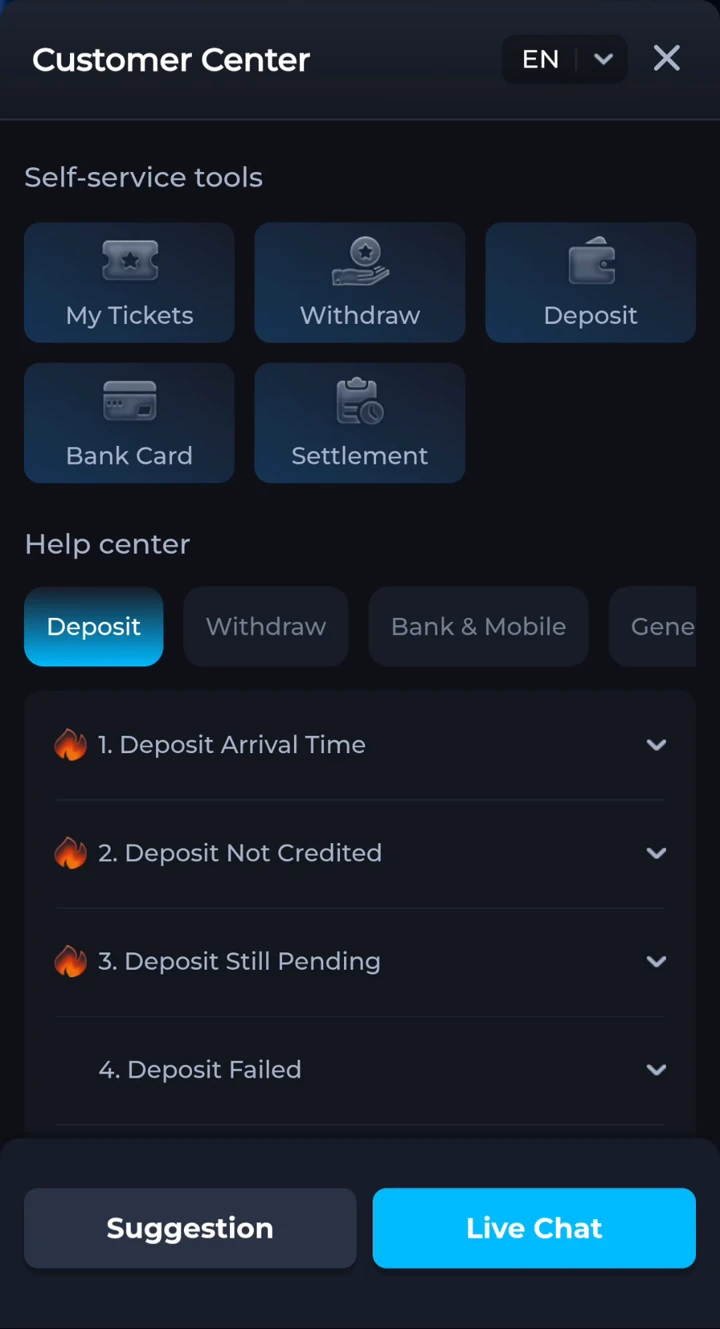
A match result that has not yet been reflected in your account is different from an existing withdrawal order. For that problem, describe the match in Settlement Issues. The help page explains these support routes.
Your questions, answered.
What is the minimum COME withdrawal amount?
Check the amount and conditions displayed in your account’s withdrawal screen. This guide does not promise a fixed minimum that applies to every account.
Should I submit again if the confirmation screen disappears?
Check transaction history first. If a request already exists, track that order rather than creating another while its status is unclear.
Where can I ask about a withdrawal?
Open Contact CS from the account menu, then Customer Center. Use the relevant order in Withdrawal Issues when available, or ask through Live Chat.